Roblox Gamepass Icon Maker
A game pass icon has one job: show what the player gets. Describe the perk and get a set of icons composed for the circular crop Roblox applies, exported at 512×512.
How it works
- 1
Describe it
Say what the pass icon should show in a sentence or two: the character, the object, the mood. Pick an art style if you have one in mind.
- 2
Compare the variants
You get a set of differently composed options from one description, each shown at the small size players will actually see.
- 3
Download at 512×512
Export the one you like as a square 512×512 file and upload it in the Creator Dashboard.
Roblox size requirements
| Asset | Size | Shape | File formats | File size | Source |
|---|---|---|---|---|---|
| Game pass icon | No larger than 512×512 px | Square file, shown cropped to a circle | .jpg, .png, .bmp | Not specified | Creator Hub |
Blank PNG templates
Place the transparent guide above your artwork in an image editor. Hide it before exporting your finished image.
- Download PNG
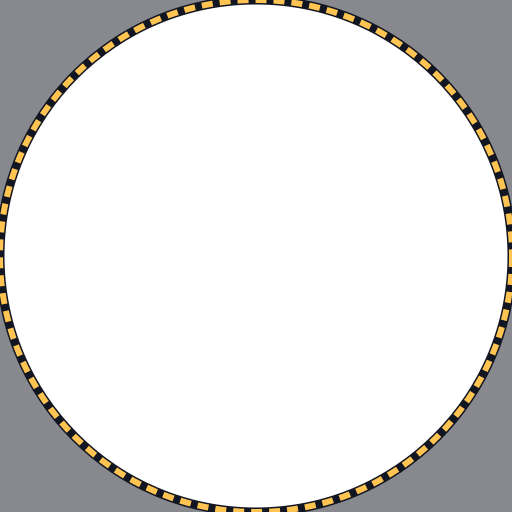
Gamepass icon 512×512
Keep key details inside the circle.
Design for the circle
Roblox shows pass images inside a circle. The Creator Hub documentation asks that the image does not include important details outside of its circular boundaries, and it lists an image that crops important content as an example of what to avoid.
Icons made on this page are prompted to keep the subject inside the central circle, and the result grid shows each one cropped round so you see exactly what a player will.
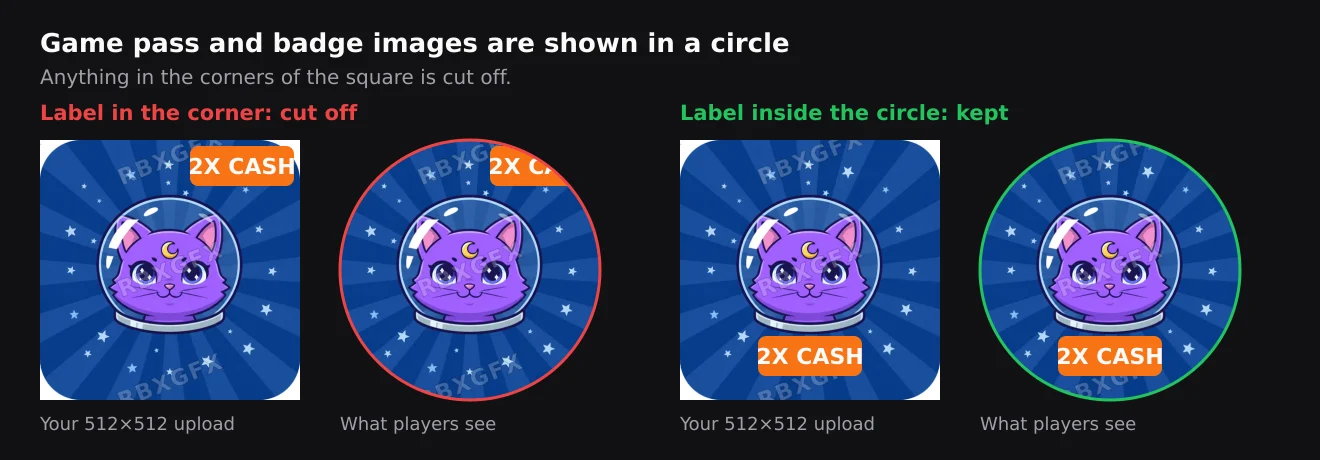
- Keep the perk itself (the sword, the pet, the 2× symbol) in the middle.
- Leave the four corners empty or filled with plain background.
- Use one icon style across all your passes so the store looks like a set.
Game pass icon not showing or blurry
A pass that shows a placeholder is usually still in moderation, or its image was rejected. Check the file against Roblox’s rule (.jpg, .png or .bmp, no larger than 512×512) and upload it again if it was rejected. Exports straight from an editor are often far larger than 512×512.
Pass images are compressed and shown small, so fine lines and small text blur. Developers on the Roblox forum recommend thicker outlines; one bold item with one or two short words survives best.
A matching set for your whole store
Players decide faster when every pass in the store follows one visual system. Generate each pass with the same art style and a similar background, and change only the subject. Saving your description and editing one phrase per pass keeps the set consistent.
Frequently asked questions
More Roblox tools
- Thumbnail Maker5 test-ready thumbnails at 1920×1080
- Game Icon MakerSquare 512×512 icons for your game
- GFX MakerRendered-style scenes without Blender
- Avatar GFX MakerUse a public Roblox username as your GFX reference
- Badge Icon MakerAchievement badges that survive the crop
- Group Icon MakerEmblems for groups and studios
- Game Logo MakerStylized title lettering for your game
- Thumbnail Size CheckerCheck and fix a thumbnail for free
- Icon Size CheckerSizes for game, pass, badge and group icons
- Thumbnail PreviewSee your art on Home, on a phone and at icon size
- Update Icon MakerAdd an UPDATE or EVENT label to your icon
- Game Icon DownloaderDownload a game's icon and thumbnails and check its page
- Free Gamepass Icon Pack10 free circular 512×512 PNG gamepass icons ready to upload
- Thumbnail TemplatesStarting points for popular genres
- ExamplesThumbnails and icons made by other developers