How to Make a Roblox Thumbnail With AI (Prompt Guide & Examples)
A practical guide to making test-ready 1920×1080 Roblox game thumbnails with AI: the 4-part prompt formula, genre prompt examples, using a reference image to avoid clickbait bounce, and uploading a multi-variant test set.
Most AI Roblox thumbnails look generic for two predictable reasons: the prompt is too vague ("cool Roblox simulator thumbnail 4k") and the developer stops after generating one image. Treat AI as a fast way to produce a testable set of compositions that match your real game, and the results improve immediately.
Short answer: write a four-part prompt (subject + action + setting + lighting/palette), attach a screenshot or icon from your real game when you have one, generate 2 to 5 distinct compositions at 1920×1080 JPG/PNG under 3 MB, and activate them together for Roblox thumbnail personalization.
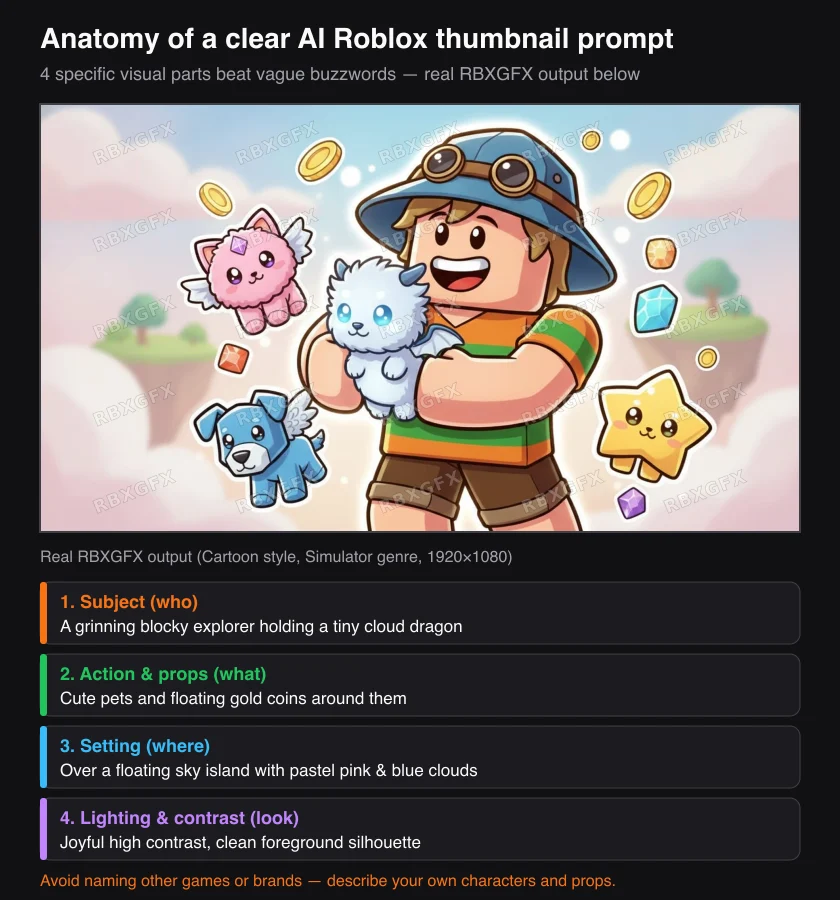
1. Use the 4-part prompt formula
Image models respond to concrete visual elements, not hype adjectives. Skip filler words like "masterpiece, trending, viral, ultra HD" and fill in four specific slots:
- Subject (who): one clear focal character, creature, or object — plus expression or pose.
- Action & props (what): what is happening right now, and the one or two signature items from your game.
- Setting (where): the recognizable biome, map, or arena behind them.
- Lighting & palette (look): two main colors and a clear contrast direction so the silhouette separates at small Home-row size.
| Weak prompt | Stronger 4-part prompt | Why it works better |
|---|---|---|
| Cool obby game thumbnail epic 8k | A cheerful blocky astronaut crossing bright floating stepping stones on a ringed candy planet, glowing lava below, clean cobalt and orange palette | Names a concrete character, clear hazard, distinct color contrast |
| Scary horror Roblox thumbnail dark | A brave blocky explorer holding a yellow lantern on a foggy midnight train platform, an old train with eerie teal headlights emerging behind them, atmospheric, no blood | Uses a warm focal light against a cool dark backdrop instead of pitch-black mud |
| Pet simulator thumbnail with lots of pets | A grinning blocky explorer holding a tiny cloud dragon over a floating sky island, cute pets and floating gold coins, pastel pink and blue clouds, high contrast | Keeps one hero subject large in front instead of a tiny unreadable crowd |
2. Copy-and-edit prompts by genre
Swap the character, prop, and color palette in these six starting patterns (more examples live on our genre template pages):
- Obby: "A determined blocky runner mid-leap across glowing neon platforms high above a canyon, finish arch glowing ahead, crisp cyan and sunset orange sky, bright rim light"
- Tycoon: "A blocky factory manager operating a golden gem press in a bright workshop, glowing blue crystals moving along a conveyor belt, teal machinery and warm orange highlights"
- Simulator: "A grinning blocky explorer holding a tiny cloud dragon on a floating sky island, floating gold coins and cute companion pets behind, joyful high-contrast cartoon lighting"
- Horror: "A cautious blocky explorer holding a warm flashlight beam down a misty abandoned hallway, mysterious glowing eyes far in the doorway behind, teal shadows, atmospheric, no gore"
- Roleplay: "Two cheerful blocky friends waving outside a cozy sunlit neighborhood bakery with pastel awnings, delivery scooter parked out front, warm golden-hour lighting"
- Fighting: "A blocky martial artist charging a bright amber energy strike in a sunlit stone arena, rival silhouette leaping from the opposite side, dramatic dynamic camera angle"
Keep prompts original. Do not put another Roblox game's title, franchise, or copyrighted character into your prompt. It creates trademark risk and produces lookalike art you cannot safely use; the RBXGFX generator refuses third-party game and brand names before spending credits.
3. Match your real game (reference image + bounce rate)
Roblox's Discovery documentation lists two key Home recommendation signals: play through rate (players clicking through to play) and first play bounce rate (players leaving within the first 60 seconds or 61–180 seconds, which is a negative signal).
An AI thumbnail that looks exciting but bears no resemblance to your actual map can raise clicks while spiking first-play bounce rate. Two habits prevent that:
- Attach a reference image (or import your game link): upload a real screenshot of your map, or open Import from a Roblox game link inside the RBXGFX generator to pull your published game's title, genre, and current icon as a reference automatically (no Roblox password or cookie needed).
- Keep the subject honest: if your game is a bright daytime tycoon, do not generate a moody sci-fi boss fight just because it looks dramatic.
Fixing the 4 most common AI thumbnail problems
| Problem in the output | Why it happens | How to fix it on the next run |
|---|---|---|
| Misspelled or warped title text | Image models still struggle with long strings | Leave the title field blank (or keep it to 1–2 short words), then add exact text in Photopea |
| Tiny crowded characters | Prompt asked for "lots of players" or a full map | Name one foreground character or prop and put everything else in the background |
| Muddy dark scene on phones | Horror or night prompt gave no light source | Add a warm focal light (yellow lantern, glowing portal, bright rim light) against cool shadows |
| Art does not match your real game | Pure text prompt guessed your style | Attach an actual map screenshot or import your game's live icon as the reference image |
When AI is enough vs. combining with Photopea or Blender
| Workflow | Best for | Trade-off |
|---|---|---|
| AI generator alone | Launching fast with 2–5 distinct compositions to test on Home | Cannot replicate a specific custom avatar rig pixel-for-pixel |
| AI base + Photopea polish | Adding exact game titles, update badges, or crisp UI icons over an AI scene | Adds 10–15 minutes of editing, gives exact typography control |
| Blender / Studio render | Exact custom character poses, specific UGC items, or studio-built props | Takes hours per image; hard to produce 5 distinct layouts for every update |
4. Generate a test set, not a single guess
In our study of the top 98 Roblox games (21 November 2026), 94 of 98 had at least 2 images on their game page, and the median was 5. More importantly, Roblox's thumbnail personalization only activates when 2 to 5 Home Page thumbnails are live at the same time.
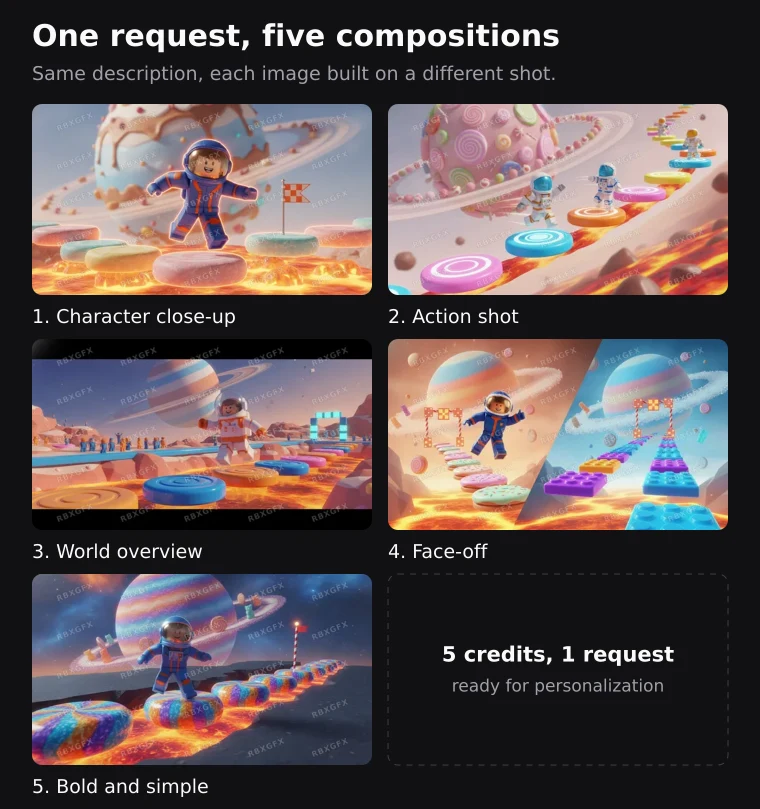
Generating five slight variations of the same pose wastes slots. Instead, test genuinely different camera angles and compositions from the same prompt:
- Character close-up (Hero): face and expression fill the frame.
- Action scene: mid-jump, mid-battle, or mid-upgrade motion.
- Wide world view: shows the scale of the map or island.
- Versus / standoff: two characters or player vs. hazard.
- Bold minimal: clean focal prop with high contrast for tiny mobile cards.
5. Check specs before uploading to Roblox
General AI image tools frequently output square images, 16:10 shapes, or .webp files — all of which cause problems on Roblox. Before uploading, verify against the Roblox Creator Hub thumbnails documentation (checked 2026-11-11):
- Dimensions: 1920×1080 (16:9) — non-16:9 shapes get stretched.
- Format: JPG or PNG (
.gif,.tga,.bmpalso documented; WebP is blocked). - File size: under 3 MB.
- Framing: keep faces and any title text above the bottom strip where overlays can sit.
You can check any AI output in seconds with our free thumbnail size checker and inspect how it holds up at mobile Home card size in the thumbnail preview tool. If you are comparing dedicated Roblox AI tools, see our sourced breakdown in best Roblox thumbnail makers in 2026.